One Prompt.
Multiple References.

Reference images, videos, audio, and transitions directly inside your prompt for more precise AI video generation.
With Vidaloops Multi-Reference Smart Prompt, your instructions and creative references live together in one place. Describe your scene, insert the assets you want the AI to follow, define how it should transition, and generate with greater creative control.
More Context. Better Direction.
A prompt can describe what you want. References show the AI exactly what you mean.
Bring It All Into the Prompt
Combine your written direction with images, videos, audio, and scene transitions directly inside the same prompt. Instead of managing separate settings, everything your scene needs stays connected to your description.

-

Reference Images
Use an image to guide subjects, environments, products, characters, composition, or visual style.
-

Reference Videos
Guide your generated scene using existing motion, camera movement, action, timing, or visual direction.
-

Reference Audio
Add audio context directly to your prompt when creating scenes that need to follow or respond to sound.
-

Inline Transitions
Reference scene transitions directly inside your description so the connection between scenes becomes part of your creative direction.
More Creative Context for Every Scene
Use Multi-Reference Smart Prompt for everything from simple generations to highly directed AI video scenes.
-
Product Content
-
Character Consistency
-
Cinematic Sequences
-
Storytelling
Tie Every Scene Together
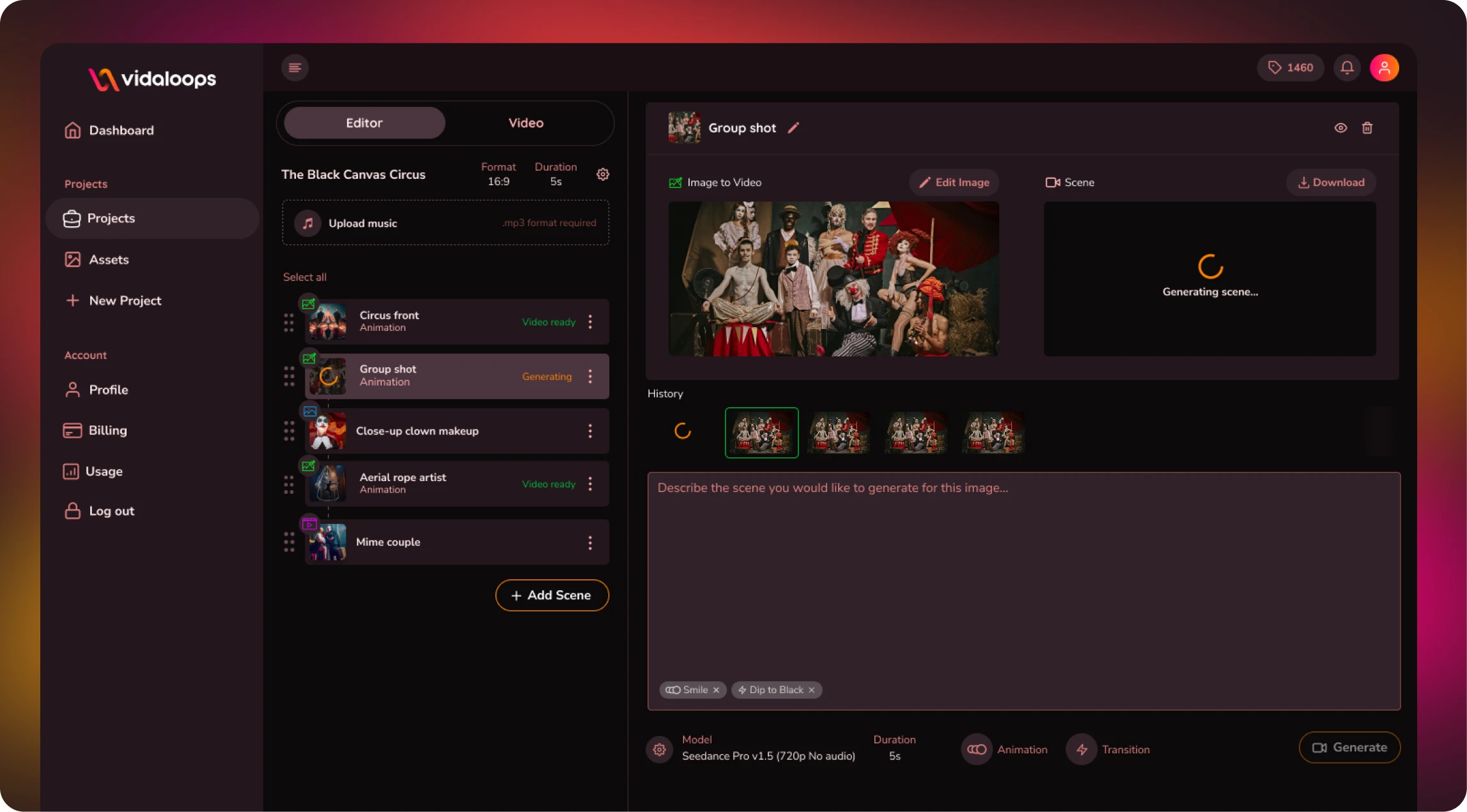
Build your video scene by scene while keeping full control over prompts, references, transitions, and creative direction. Vidaloops lets you shape each moment individually, then connect everything into one cohesive sequence.
Create More With Vidaloops
Multi-scene video works even better when paired with other Vidaloops features.
-

Image to Video
Turn still images into an AI-generated motion scenes.
-

Static to Video
Add your own static media to your project without AI.
-

AI Image Editor
Fix, restore & improve your image with Ai before you animate it.
Best for Creators and Businesses
Frequently asked questions
What is Multi-Reference Smart Prompt?
Multi-Reference Smart Prompt lets you combine your written AI video prompt with reference images, videos, audio, and transitions directly inside the same description. This gives the AI more creative context while keeping your entire scene direction in one place.
How do I add a reference to my prompt?
While writing your scene description, type `/r` anywhere inside the prompt. You can then select a supported reference asset such as an image, video, or audio file and continue writing normally.
How do I add a transition?
Type `/t` inside your prompt to select a transition for your scene. The transition becomes part of your scene direction alongside your written instructions and references.
Can I use more than one reference in the same prompt?
Yes. You can include multiple references within the same prompt, allowing you to combine different assets and types of creative direction for a single scene.
Do I have to use references?
No. The Smart Prompt works as a standard text-to-video prompt when references are not needed. Add references and transitions only when they help provide more direction for your scene.
What can I use as a reference?
You can reference supported images, videos, and audio from your Vidaloops project. Different reference types can provide visual, motion, audio, or creative context for the generated scene.
Can I place references anywhere in my description?
Yes. References can be inserted naturally throughout your prompt, allowing you to associate assets with the specific part of your description they are meant to guide.
Can I use different references for every scene?
Yes. Each scene can have its own prompt, assets, transitions, and creative direction, giving you scene-by-scene control over your final video.
Your AI Video Studio Awaits
Sign up now and turn your visuals into cinematic motion in minutes.