Fix, Restore and
Enhance Any Photo
Before
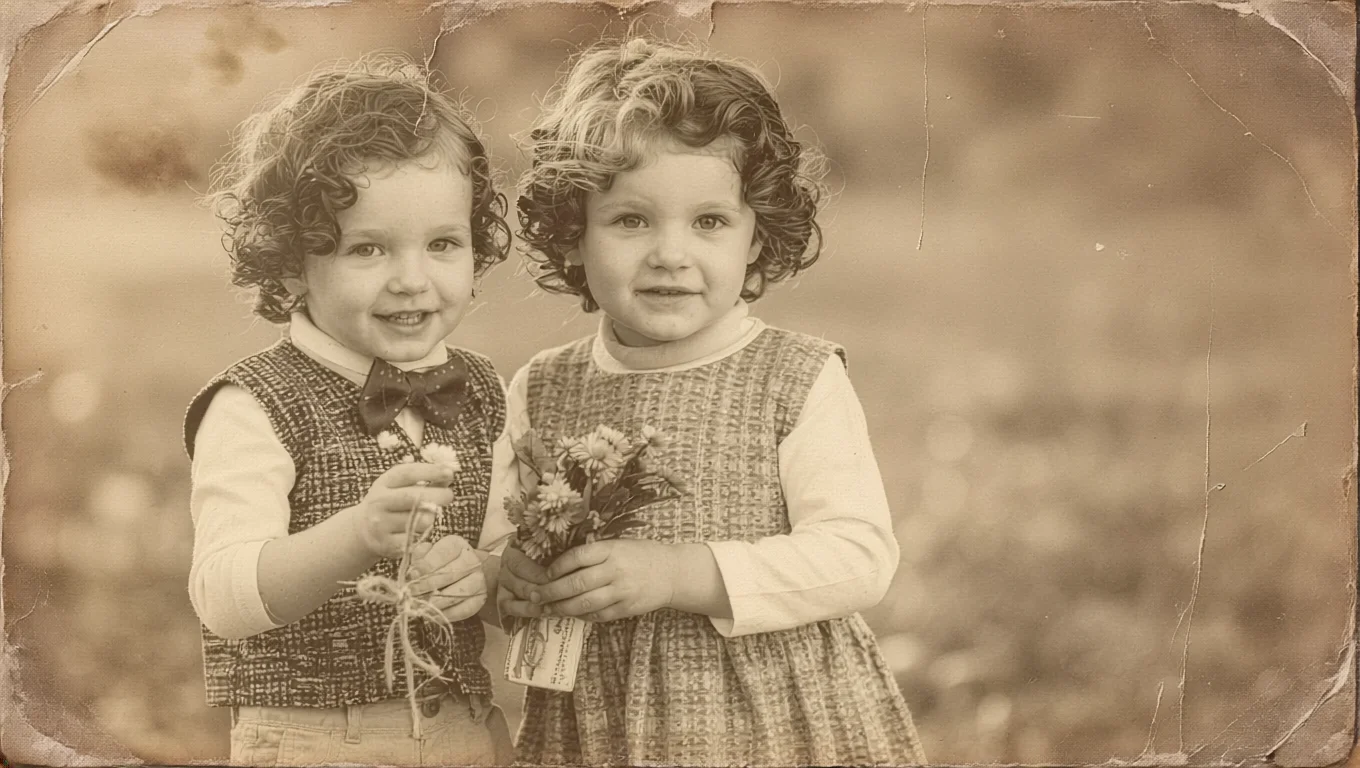
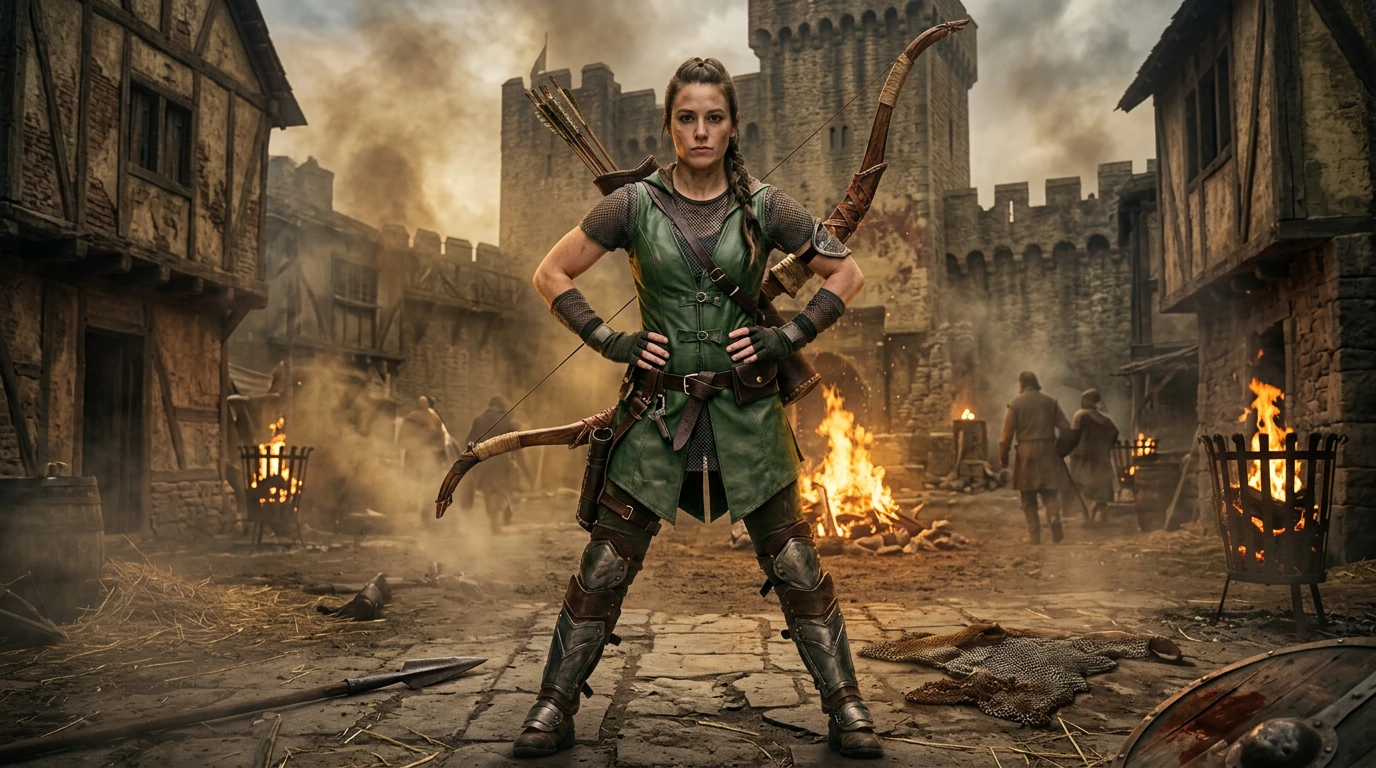
After
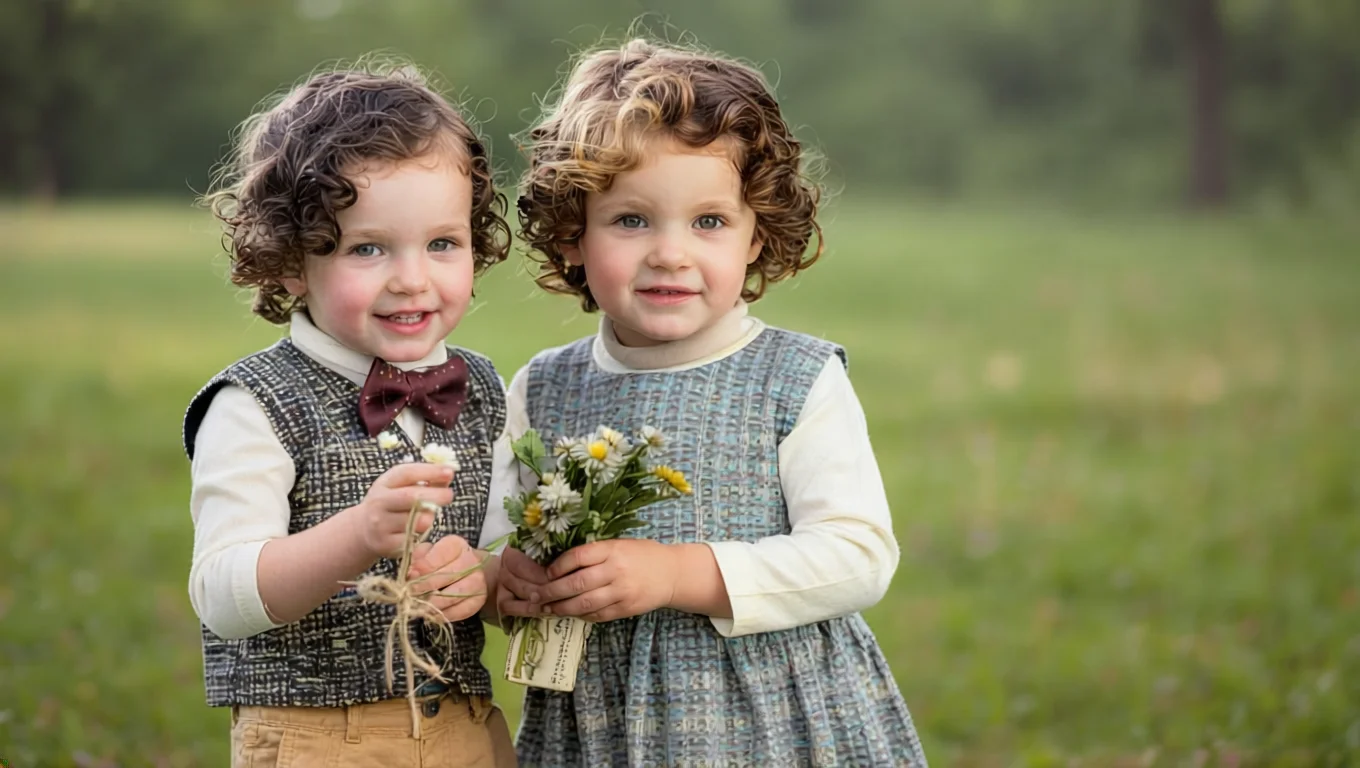
Clean up, resize, retouch, and transform your images before turning them into AI videos.
Vidaloops gives you an AI image editor built for photo restoration, image enhancement, creative edits, and animation-ready visuals — all in one simple workflow.
AI Image Editor built for Photos
Vidaloops helps you improve your image before you animate it, so your final video looks cleaner, sharper, and more polished.
Damaged Photo to Restored Image
Repair old pictures, reduce scratches, clean dust, and improve faded details.
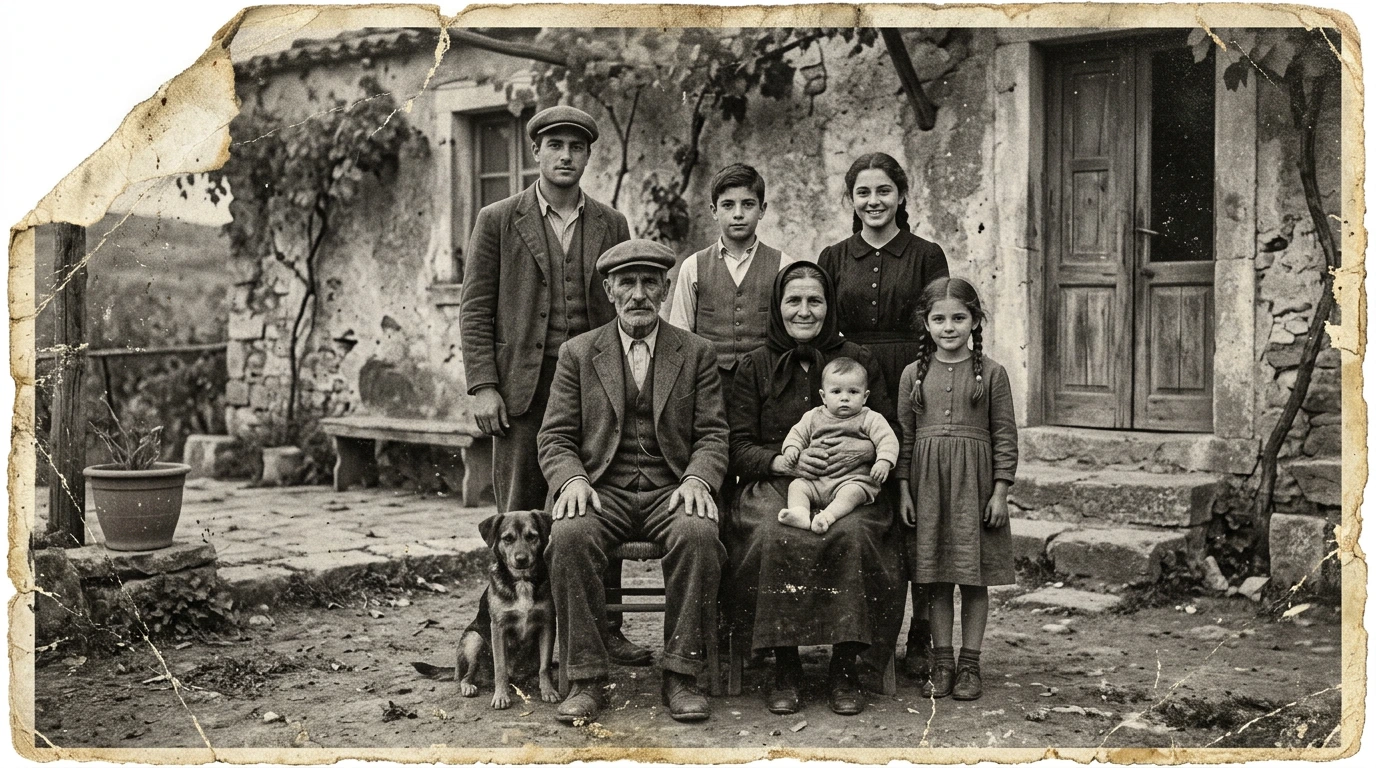
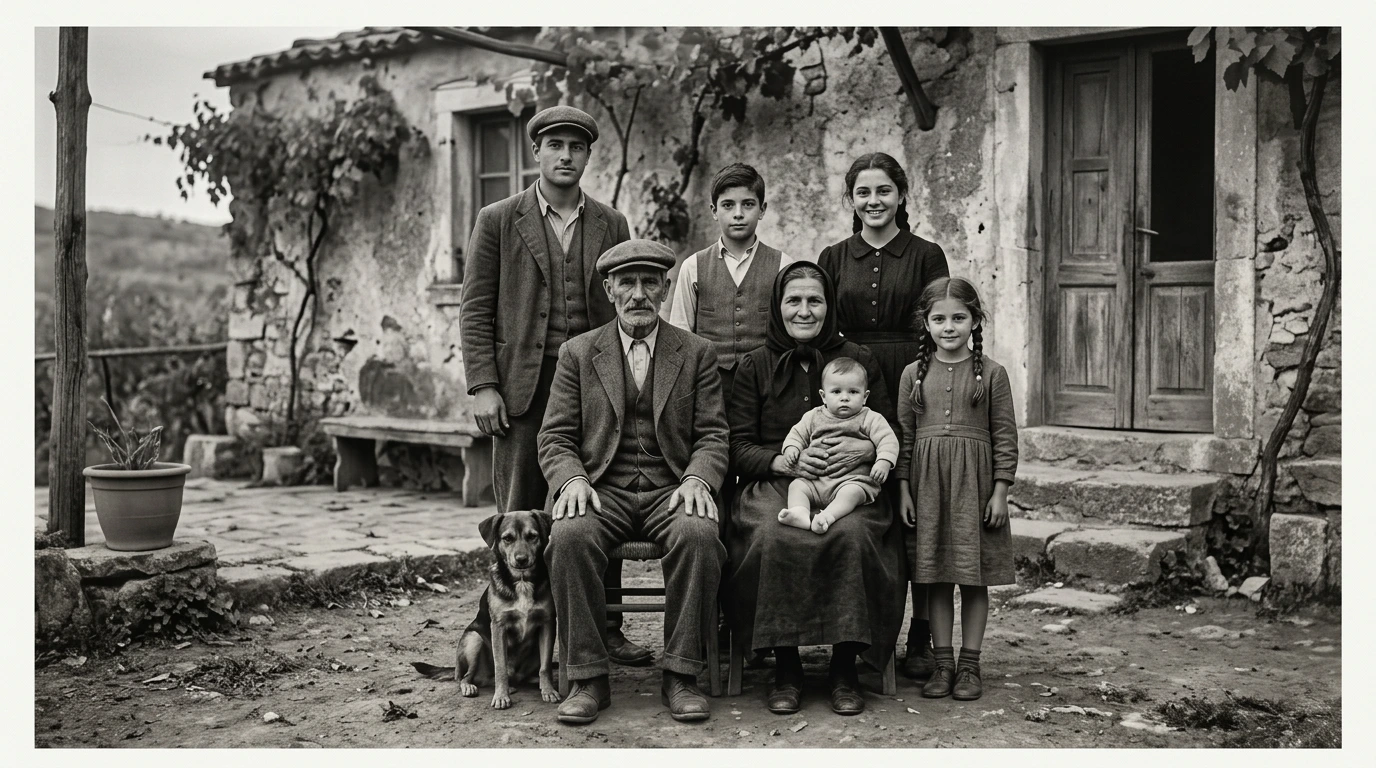

Low-Resolution to Upscaled Photo
Increase image quality and prepare small or blurry photos for better rendering.
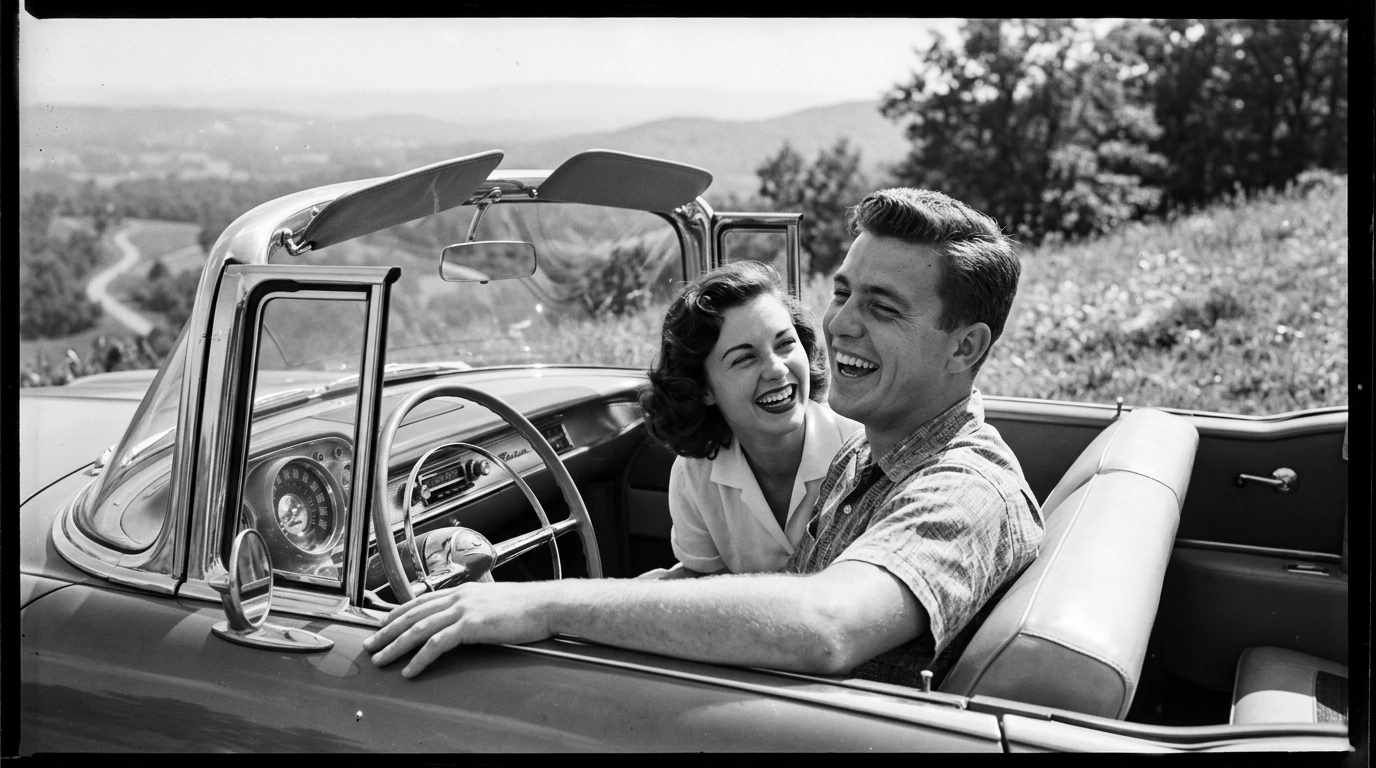
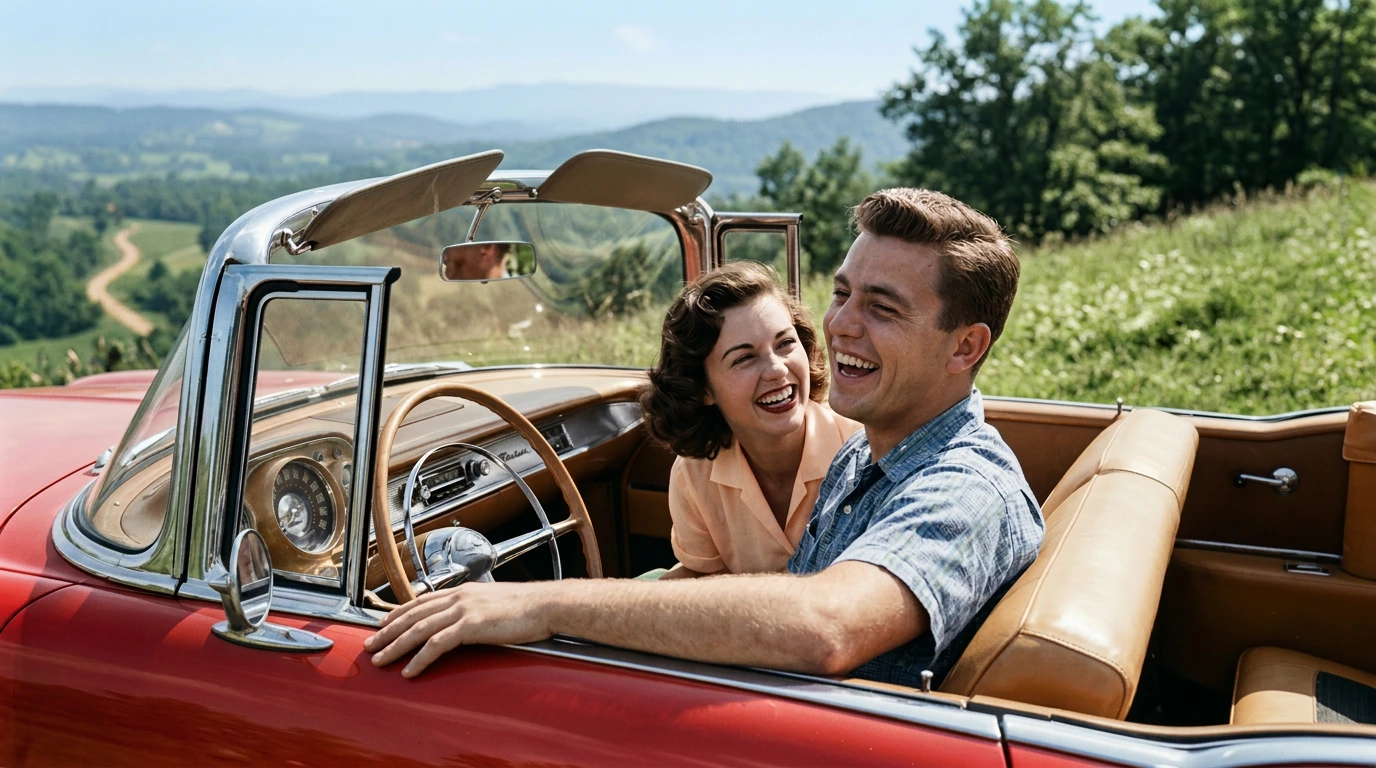
Black-and-White to Colourized Image
Add natural-looking colour while preserving the original feeling of the photo.
Original Image to Styled Scene
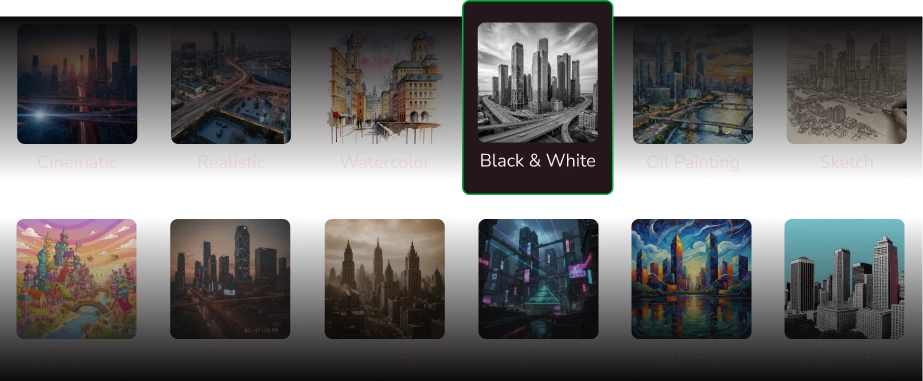
Apply presets like cinematic, realistic, watercolor, and more to match the mood of your final video.
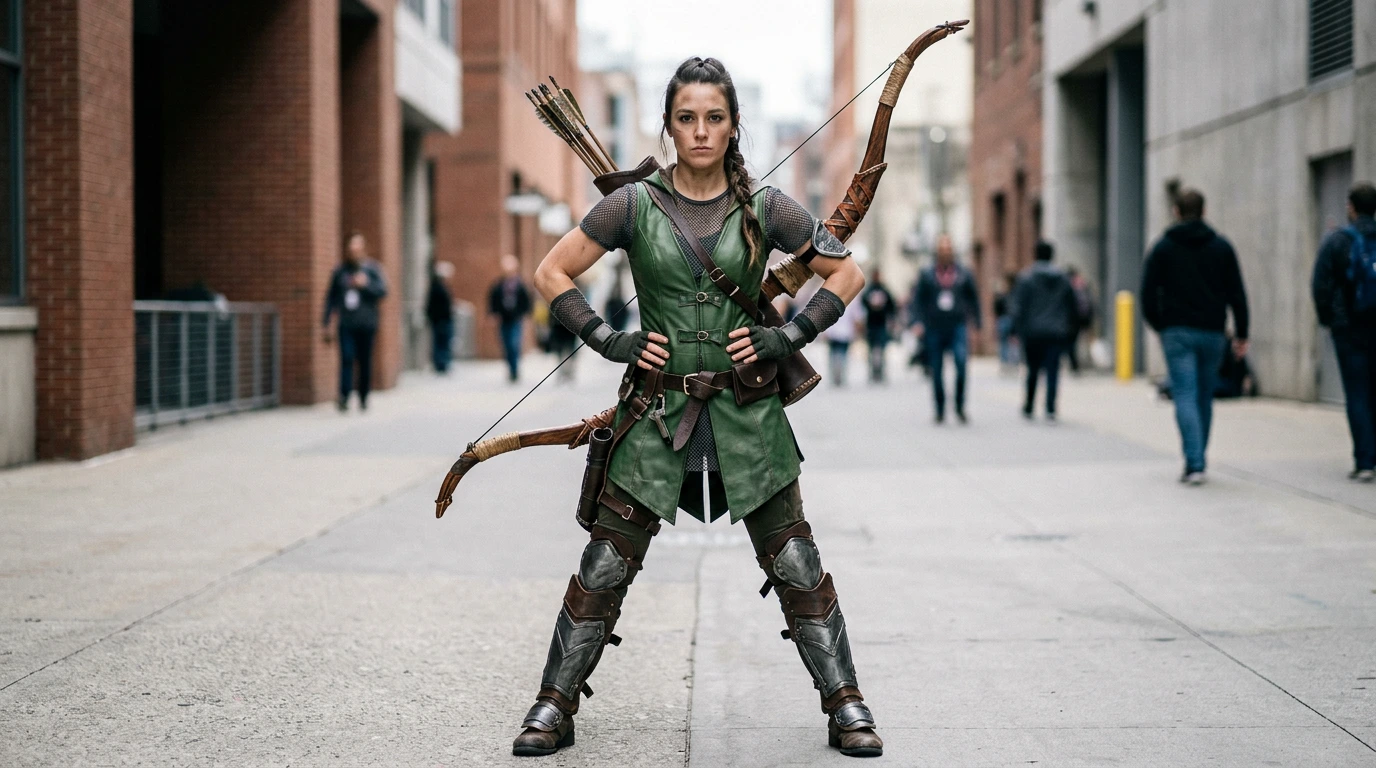
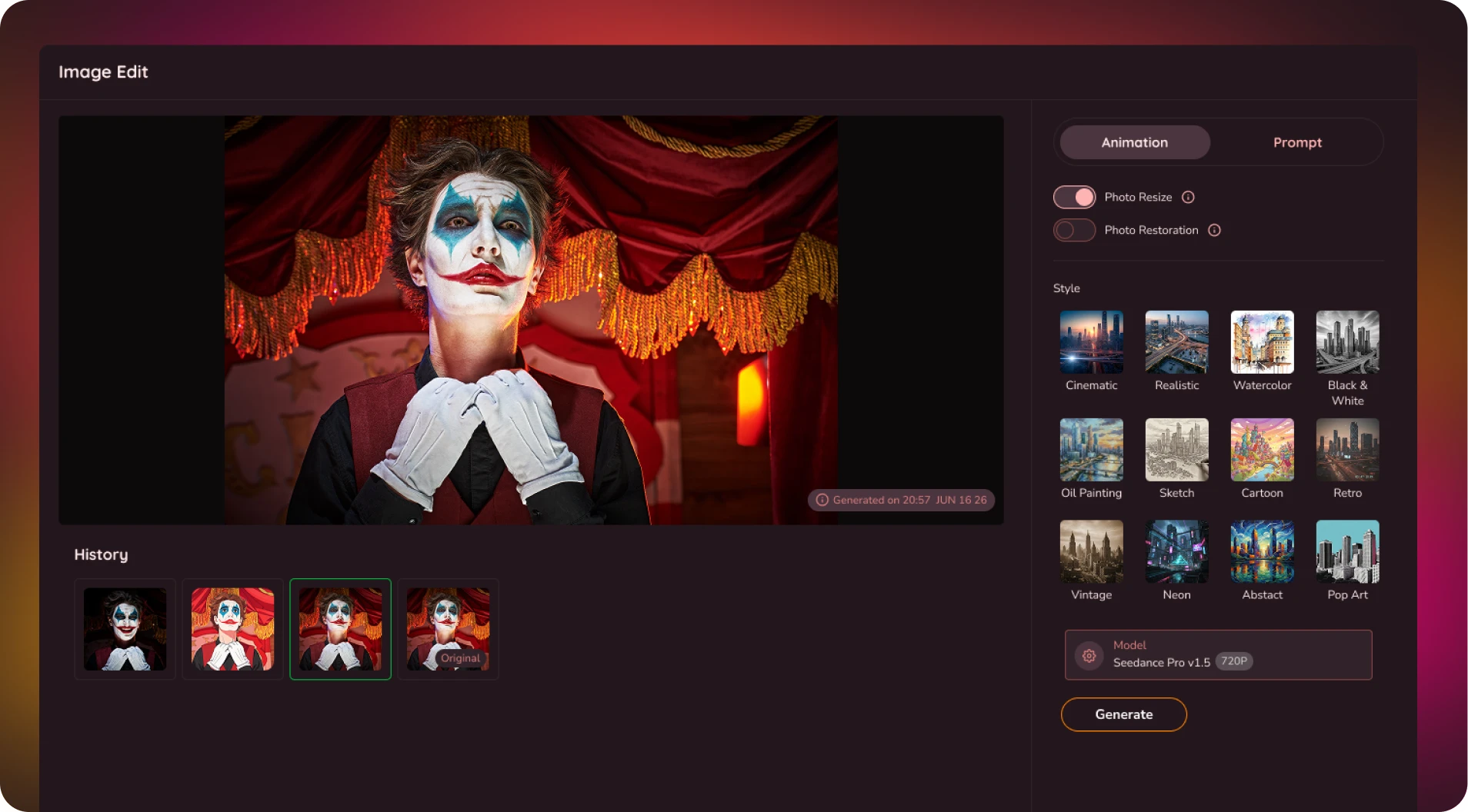
Choose the AI model that best fits your style, speed, and quality needs


Guide the look with Prompts
and Preset Styles
Want a more cinematic look? A softer realistic finish? A watercolor-style version? Vidaloops lets you guide your image edits with both presets and prompts.
Describe the scene you would like to generate for this image...
Upscale and Enhance Image Quality
Explore the key tools that help you restore, enhance, resize, style, and prepare your images for AI video creation.
-

Resize for Any Scene Ratio
Adapt your photo to your video format, such as 16:9, 1:1, without manual cropping.
-

Restore and Repair Old Pictures
Clean up dust, noise, skin tones, and imperfections while preserving original colours.
-

Upscale and Enhance Image Quality
Sharpen low-resolution images and improve quality before animation.
-

Retouch and Clean Details
Fix blemishes, lighting, and small imperfections without advanced editing tools.
-

Apply Creative Preset Styles
Choose styles like cinematic, realistic, or watercolor to shape the image mood.
-

Prompt Your Own Edits
Describe the changes you want and guide the AI toward your desired result.
-

Manage Assets & Projects
Manage and organize your assets into categories to keep your library organized when working across multiple projects
-

Version History
Keep track of your edits and quickly restore previous scenes and images
Create More With Vidaloops
Multi-scene video works even better when paired with other Vidaloops features.
-

Image to Video
Turn still images into an AI-generated motion scenes.
-

Smart Prompt to AI Video
Create an AI-generated videos from a written prompt.
-

Static to Video
Add your own static media to your project without AI.
Best for Creators and Businesses
Frequently asked questions
Can I restore an old or damaged photo?
Yes. Vidaloops can help restore old, faded, scratched, or damaged photos using AI. Upload your image and choose the restoration option to reduce scratches, repair visible damage, sharpen details, improve contrast, and enhance the overall photo quality. Results will vary depending on the condition of the original image, but a clear scan usually produces the best restoration.
How do I upscale a low-resolution image?
Upload your low-resolution image to the Vidaloops AI Image Editor and enable Photo Resize. AI intelligently upscales the image, increases its resolution, and adapts it to the default scene format while enhancing fine details and reducing blur or pixelation. The result is a sharper, clearer image that's better suited for sharing, printing, or creating high-quality animations.
Can I add colour to a black and white photo?
Yes. Vidaloops can automatically colourize black-and-white photos using AI. The editor analyzes the people, clothing, objects, and background in the image to add natural-looking colour while preserving the original details. You can then download the colourized photo or continue directly to the animation tools.
Do I need editing skills like Photoshop?
No. Vidaloops is designed for people with no photo-editing experience. You do not need to work with layers, masks, brushes, or complicated settings. Simply upload your photo, choose an edit such as restore, upscale, colourize, or enhance, and let the AI image editor process it automatically.
Can I edit a photo and then animate it in the same place?
Yes. Vidaloops lets you edit and animate your photo within one platform. You can restore damage, increase the resolution, improve the lighting, colourize the image, or enhance its details, then send the edited photo directly into the image-to-video workflow. There is no need to download the image and move it into a separate animation tool.
What image formats and sizes are supported?
Vidaloops supports commonly used image formats such as JPG, JPEG, PNG, and WebP. For the best results, upload the highest-quality version of your image available. Clear scans and photos with good lighting generally produce stronger restoration, upscaling, colourization, and enhancement results. Maximum file size and resolution limits may depend on your selected plan.
Your AI Video Studio Awaits
Sign up now and turn your visuals into cinematic motion in minutes.